Google Sheet
How to Auto-Create Sub-Tabs in Google Docs Using Apps Script
I recently reorganized a content-heavy workflow inside Google Docs.
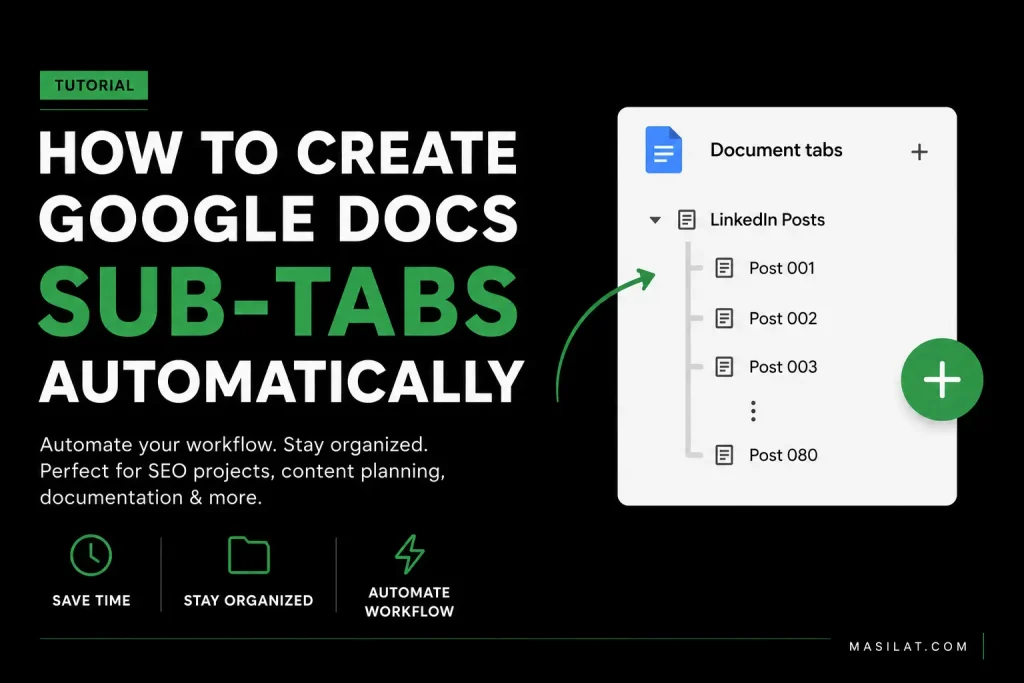
The problem was simple: one project, too many documents. I wanted a single document with a clean structure — one parent tab, and dozens of sub-tabs nested under it, one per content piece.
Google recently added tabs and sub-tabs to Docs. Useful feature. The issue is creating them in bulk. Doing it manually — for 50 or 80 items — is exactly the kind of repetitive clicking that should not exist in 2025.
So I tried to get an Apps Script written. That is where things got interesting.
Why AI Models Struggled With This
I tested this across multiple models. The results were all over the place.
Some said Google Docs does not support creating sub-tabs through the API at all. That is wrong.
Others generated the right idea but the wrong request format — payloads that looked correct but would silently fail or throw generic errors.
A few got close. Still failed.
The actual solution is straightforward once you know it. The Google Docs API supports creating tabs programmatically using addDocumentTab. To create a nested sub-tab, you pass the parent tab ID in the request. That is it.
The final error I hit was not even a code issue.
The API returned:
Docs are limited to 100 tabs.
First reaction: another API problem. It was not. Authentication was working. OAuth was working. The endpoint was correct. The payload was correct.
I had just hit Google’s hard limit of 100 tabs per document. The error message was telling the truth the whole time.
The Script
Here is the Apps Script that handles this automatically:
function createLinkedInSubTabs() {
  const docId = DocumentApp.getActiveDocument().getId();
  const token = ScriptApp.getOAuthToken();

  const parentTabId = 't.0';
  const maxTabsAllowed = 100;

  const doc = DocumentApp.getActiveDocument();
  const existingTabs = doc.getTabs().length;

  const remaining = maxTabsAllowed - existingTabs;
  const count = Math.min(remaining, 80);

  if (count <= 0) {
    Logger.log('No space left. Google Docs allows max 100 tabs.');
    return;
  }

  const requests = [];

  for (let i = 1; i <= count; i++) {
    requests.push({
      addDocumentTab: {
        tabProperties: {
          title: 'Post ' + i,
          parentTabId: parentTabId
        }
      }
    });
  }

  const response = UrlFetchApp.fetch(
    `https://docs.googleapis.com/v1/documents/${docId}:batchUpdate`,
    {
      method: 'post',
      contentType: 'application/json',
      headers: {
        Authorization: 'Bearer ' + token
      },
      payload: JSON.stringify({ requests }),
      muteHttpExceptions: true
    }
  );

  Logger.log(response.getResponseCode());
  Logger.log(response.getContentText());
}
How to use this script
- Open your Google Doc.
- Go to Extensions → Apps Script.
- Create a new project and paste the code.
- Change the
parentTabIdto the tab where you want the sub-tabs to be created. - Click Run and authorize the script the first time.
- The script will automatically create numbered sub-tabs until the Google Docs limit (100 tabs) is reached.
Who This Is Actually Useful For
Anyone who uses Google Docs for documentation, knowledge management, or organized content creation.
A few examples:
- SEO projects — Technical Audit, Keyword Research, Content Strategy, Internal Linking, Backlink Planning, Monthly Reports, all in one document.
- Product managers — Features, Sprint Planning, User Feedback, Release Notes, Documentation in a single place.
- Project managers — Requirements, Meeting Notes, QA, Development Updates, Handover Documents, no tab-switching between files.
- Content creators — One document, one sub-tab per piece. Easier to navigate, easier to search, easier to manage than a folder full of separate files.
The Takeaway
A five-minute script replaced hundreds of manual clicks and cleaned up a workflow I use every day.
The more interesting observation is that a relatively new Google Workspace feature — one that has been available for less than a year — is still a blind spot for most current AI models. They either deny it exists or generate broken code. A bit of manual debugging was needed to get there.
Sometimes that is just how it goes with new APIs. The documentation exists. The feature works. The models have not caught up yet.